The most advanced YouTube parental controls for Chrome, Edge and Firefox.
Most blockers only know how to say "yes" or "no". Here, you decide the exact time granted to each topic: 20 minutes of Minecraft, and that's it. For parents, students, and anyone who wants to take back control of YouTube.
- A precise time per topic: 20 min of Minecraft, nothing else
- Or a simple daily time cap
- Time window: YouTube blocked outside allowed hours
- Settings protected by password
- No data collected
A precise time for every topic
Most extensions only know how to say "yes" or "no". This one knows how to say "20 minutes of Minecraft, and that's it".
Here's the extension exactly as it looks in the browser. Switch modes, open the sub-menus, adjust the durations, add keywords — everything is functional.
You or your child spending too much time on YouTube?
- Shorts play one after another and quickly become addictive.
- Certain video categories end up taking over everything.
- A simple timer can't tell the difference between learning and entertainment.
- And above all: children quickly find ways around the limits — multiple tabs, minimized windows, videos embedded on other sites.
Made for parents — and anyone who wants to take back control
Four simple levers, that you combine however you want.
Daily time
A quota of minutes per day. Once reached, YouTube is blocked.
Keyword-based limits
A precise time for each topic: 20 min of Minecraft, and nothing else.
Password
Your settings are locked and encrypted. Only you can change them.
Sessions
Split the day into slots, with mandatory breaks between each.
What makes it different
Most extensions stop at a timer. This one goes further — and always for a good reason.
Daily timer
Because a clear cap is sometimes enough. One limit per day, period.
Keyword timer
Because not all screen time is equal. An hour of recorded lectures isn't an hour of Fortnite.
Mix mode
Because we often want both at once: a global cap and per-topic limits that count down in parallel.
Session mode
Because cutting off cleanly beats watching without end. We enforce breaks, and YouTube stays blocked during them.
A few concrete examples
The same extension, tailored to what your family needs.
🎮 Limit Minecraft
Allow 20 minutes of Minecraft per day. The rest of YouTube keeps working normally.
⏱️ Stop Shorts
Enable "Block Shorts" in the Settings. Endless scrolling disappears — no keyword to configure.
📚 Keep the educational
Let courses and tutorials through, but cap entertainment.
🍽️ Split the day
30 minutes after homework, 30 after dinner — with a mandatory break in between.
🌙 Cut off in the evening
Set a window from 08:00 → 21:00: after 9 pm, YouTube is blocked and time is no longer counted.
💾 Duplicate across devices
Configure once, export, then import the full configuration onto the other computers in the house.
Different modes
- Timer mode: for a daily limit or multiple sessions
- Keywords mode: define a list of words linked to a timer, or assign a timer to each keyword
- Mix mode: each keyword has its timer, all under an overall daily cap
Why the timer is reliable
- Time keeps counting, even with the tab in the background or window minimized.
- Multiple open YouTube tabs count only once — no cheating.
- YouTube videos embedded on other sites are also monitored.
- Regular videos, Shorts and mini-player: everything is counted.
- Automatic reset every day at the time you choose.
- The remaining time shows directly on the extension icon — it turns red below 5 minutes.
Security and parental controls
- Settings protected by password.
- Encrypted password, never stored in clear text.
- Secure activation and deactivation.
- 100% local data: nothing collected, nothing sent.
- Usage window: outside the allowed hours (e.g. 08:00 → 21:00), YouTube is fully blocked — even across midnight.
Designed to be easy to use
- A compact, clear interface with no unnecessary settings.
- Available in 8 languages (EN, FR, DE, IT, ES, JA, PL, SV).
- Adapts to your browser's language, or set your own.
- Notifies you at the right moment, for important actions.
- Export the full configuration (modes, limits, keywords, time window…) and re-import it on another device.
Screenshots
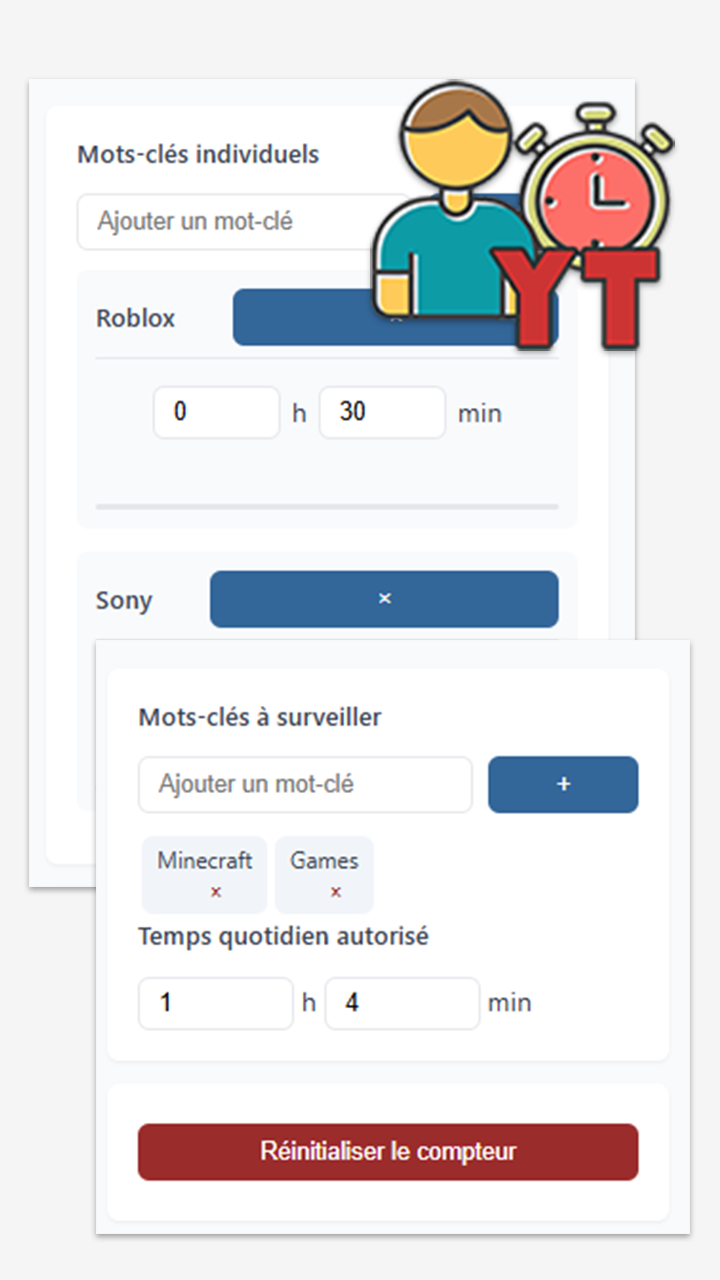
Various settings
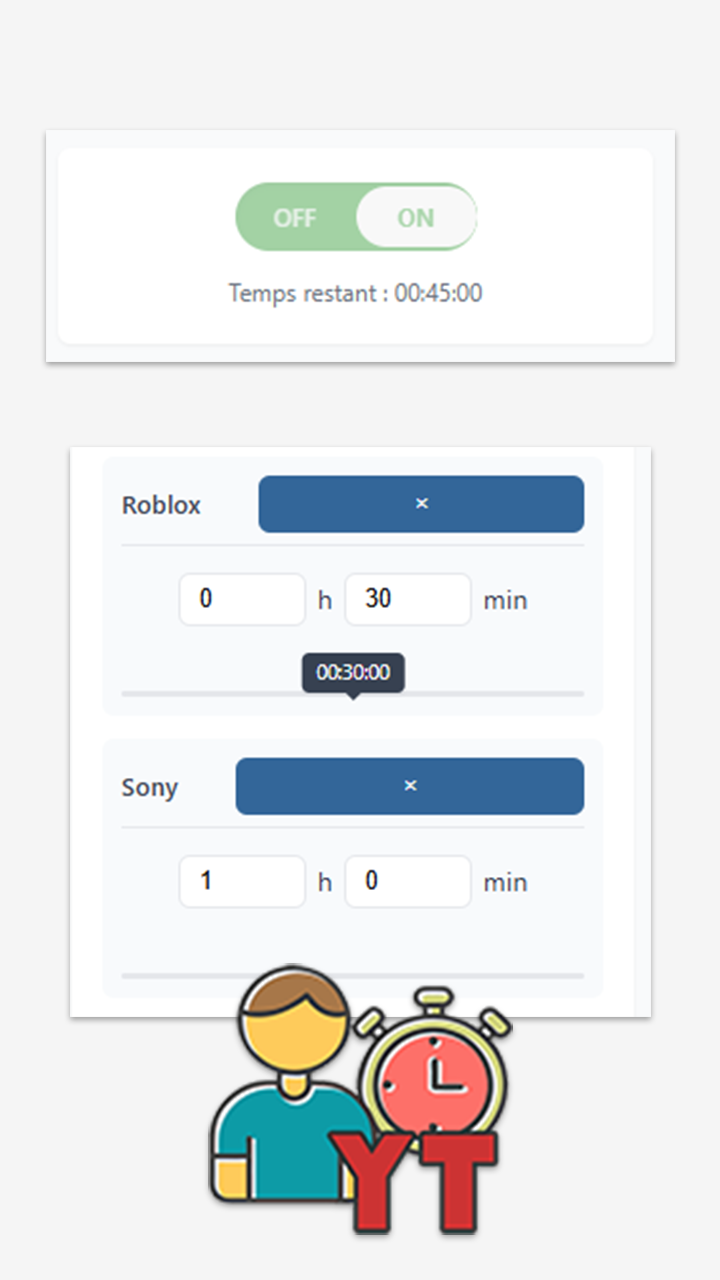
Individual time tracking
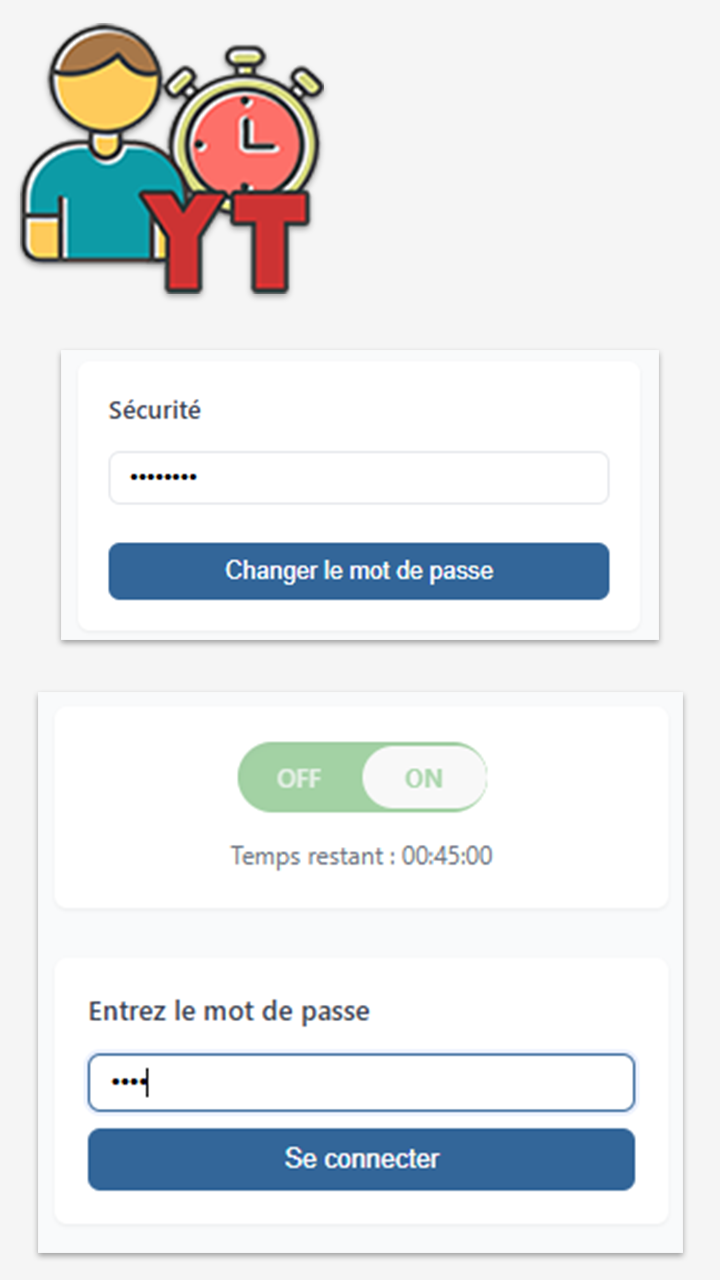
Daily timer
Frequently asked questions
How does keyword-based control work?
The extension analyzes the titles and descriptions of YouTube videos and shorts to detect the keywords you've defined. When a video contains a monitored keyword, the viewing time is counted according to your settings.
Is the extension really free?
Yes, the extension is fully free and will remain so. You can support development with a donation if you wish.
How do I reset the password if I've forgotten it?
Simply reinstall the extension: only the password is removed. Your keywords and configured times are preserved. You can then set a new password.
Does the extension collect any data?
No, the extension respects your privacy. All data is stored locally in your browser and no information is sent to external servers.
Can I use the extension on multiple browsers?
Yes, you can install the extension on Edge, Chrome and Firefox. The full configuration can be exported and re-imported into another browser.
How does the daily reset work?
By default, time counters reset automatically at midnight (local time). You can set the time manually or trigger a manual reset from the settings if needed.
What's the difference between Timer, Keywords and Mix modes?
Timer mode limits the total time spent on YouTube. Keywords mode limits time based on the content watched. Mix mode combines both for advanced control with smart double counting.
Can I save or transfer my configuration?
Yes. From Settings, export the full configuration (modes, limits, keywords, redirect URL, reset time, time window, language) and re-import it on another device. The password and the day's counters are intentionally excluded. The import replaces the existing configuration and requires confirmation.
Can I block YouTube at certain hours?
Yes. Set an allowed time window in Settings (for example 08:00 → 21:00). Outside this window, YouTube is fully blocked with a dedicated message and time isn't counted. A window that crosses midnight (21:00 → 08:00) is supported. The feature is off by default.
How do I fully block Shorts?
Open Settings and enable the "Block Shorts" option. Already-open Shorts tabs are closed immediately and access remains blocked as long as the option is on — no keyword needed.
Is ad time counted?
No. Ads shown before or during a video are never counted by the extension: only the actual video playback time is counted. Your limits therefore reflect the time actually spent on the content you care about.
How it works
Installation
Install the extension from the link that matches your browser:
Choose a mode
When you open the extension, you choose its operating mode. The ON/OFF slider activates monitoring, the counter shows the remaining time, and the three buttons (Timer, Keywords, Mix) switch instantly between modes. Click to try:
Explore each mode's sub-menus
Each mode has its own sub-menus. Pick a tab below then try whatever you like — the menus are fully functional. The Import and Export keyword buttons are intentionally greyed out in this demo.
In Timer, choose between Daily (a cap of minutes per day) and Session (several slots with mandatory breaks between them).
The Settings panel
A single menu gathers all the general settings: the redirect page (used in Timer and Mix when the limit is reached), the reset time of the counters, an allowed time window (YouTube blocked outside), the Shorts blocker in one click, and a button to reset the counters at any time. Try each field:
The Import/Export configuration buttons are greyed out in this demo.
Password protection
From the Security panel, enter a password and confirm to lock the settings: the pop-up closes onto an "Enter password" screen that must be typed again to return to the options. To remove the password, unlock then confirm with the field empty.
Enable monitoring
Once your settings are in place, all that's left is to flip the slider to ON. The counter starts immediately, the extension icon shows the remaining time, and turns red under the last 5 minutes. Flip the slider below to see the counter kick in: